Session lets you sell digital gift cards your clients can buy for themselves or send to friends and family. It’s perfect for holidays, Black Friday sale, or whenever you want an easy “yes” offer.
 Where to find Gift Cards
- Go to Manage → Gift cards.
- You’ll see your gift card page preview, your purchase link, and a list of all issued gift cards.
How clients buy a gift card
- When gift cards are enabled, clients can purchase one from your booking site or from the public gift card link shown at the top of the page.
- They choose an amount you’ve made available.
- Session generates a unique redemption code and tracks the balance for you.
Set the amounts you want to sell
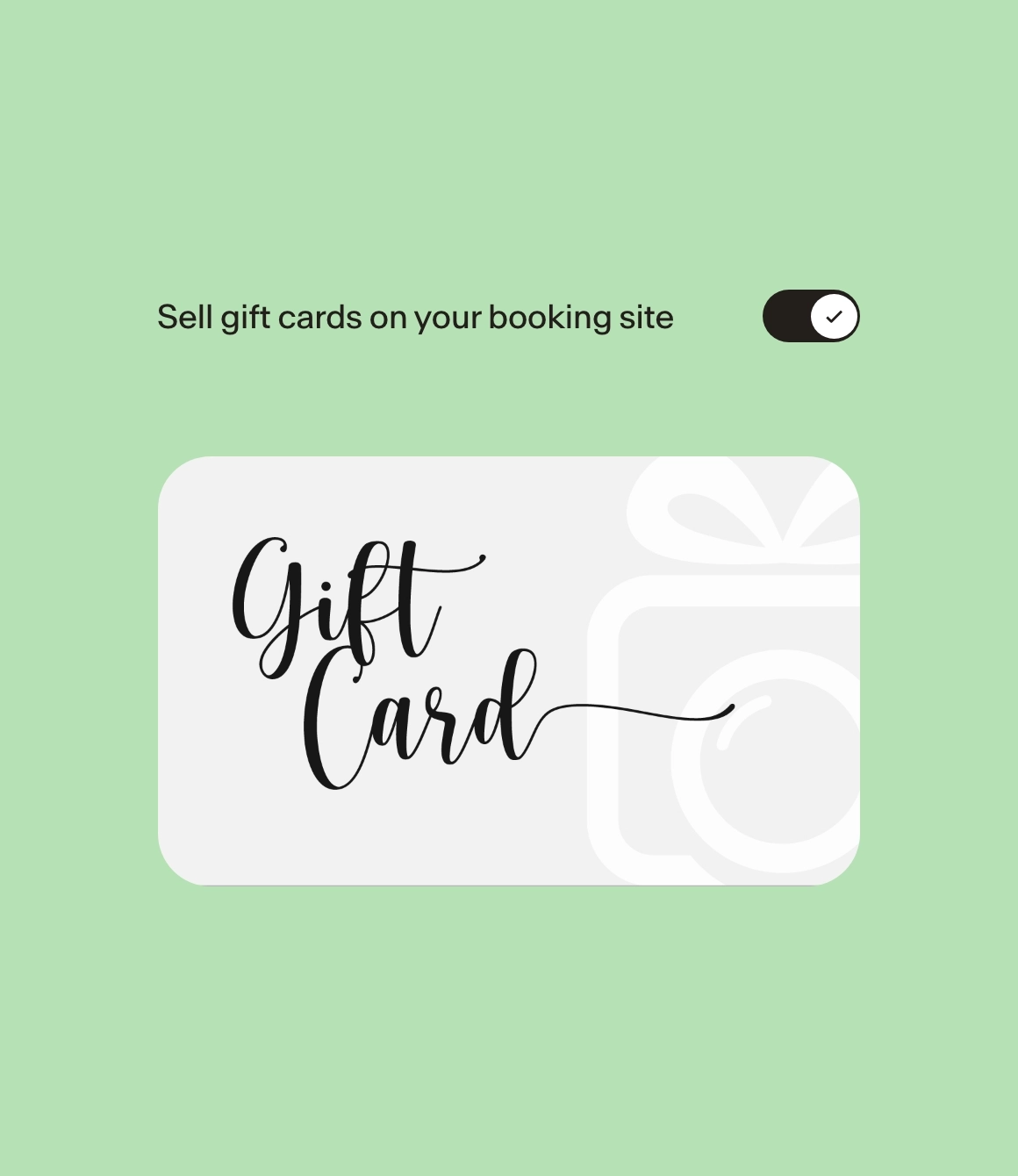
- In Manage gift card purchase amounts, turn Sell gift cards on your booking site ON.
- Add the amounts you want to offer (e.g. $150, $200).
- Optional: set it up so clients pay one amount but receive a higher value (great for promos).
Create a gift card for a specific client
Sometimes you want to issue one manually (client paid cash, you’re gifting one, etc.):
- Click Create a gift card for a specific client.
- Pick or add the client.
- Set the value and save.
- Session gives you the redemption code and link.
Managing existing gift cards
- Open any gift card in the list to see balance, client, code, and date purchased.
- You can adjust the balance if you need to.
- You can search gift cards and optionally show ones with no balance.
Why use gift cards?
- Great low-friction offer for slow seasons.
- Perfect add-on to promo emails or social posts.
- Lets clients buy photography as a gift without you having to invoice manually.